






How to install and customize Windows operating system from scratch
15/11/2024
How to install and customize Windows operating system from scratch: Step-by-step instructions from an expert
Computers have become an integral part of everyday life these days, and installing an operating system is a skill that every self-respecting user should have, especially if you are interested in gaming computers. Installing Windows from scratch may seem like a daunting task, but with the right guidance, it becomes a simple and straightforward process. Let's take a look at all the steps that will help you successfully install Windows on your computer.
Preparation of hardware and software
Before you begin installing Windows, make sure you have everything you need:
A personal computer or laptop - Make sure your device meets the minimum system requirements for installing your chosen version of Windows.
A USB drive of at least 8 GB - To create bootable installation media.
Windows installation disk image (ISO file) - You can download it from the official Microsoft website.
A program to create bootable USB keys - For example, Rufus.
Download and install Rufus: Run the program. It is easy to use and free of charge. Insert the USB drive into your computer: Make sure there is no important information on it, as it will be formatted. Select the downloaded ISO file in Rufus: The program will configure the best settings for burning. Start the bootable media creation process: Click "Start" and wait for it to finish.
Preparing the computer for installation
The following steps must be completed before beginning the installation:
Back up your data. Remember to save all important files and data:
Use cloud services - such as Google Drive or OneDrive.
Use external drives - to transfer data manually.
Check and configure the BIOS:
Log into your computer's BIOS: This is usually done by pressing the Del, F2, or Esc key when you turn on your computer.
Set USB boot priority: Find the boot order section and put your USB drive first.
Save your changes and exit the BIOS: This will allow the computer to boot from USB the next time it starts up.
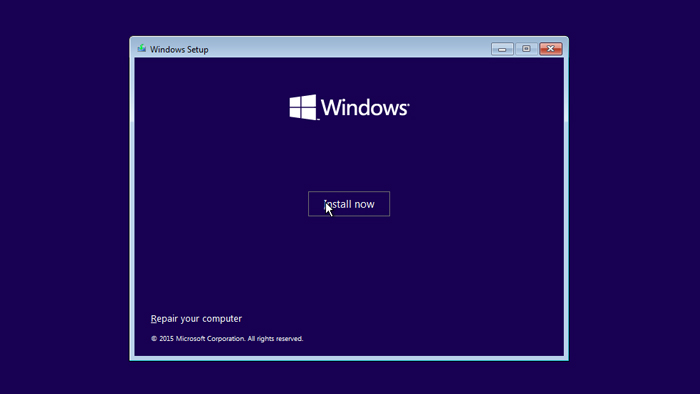
Windows Setup
Start the installation:
Insert the bootable USB drive into your computer and restart your computer.
Follow the on-screen instructions: When prompted, press any key to boot from USB.
Select language, time and input format:
Click Install Now: In the license key entry field, if you don't have one, select "Skip" or "I don't have a key".
Select the installation type - "Selective".
Select a partition for installation or create a new one: If there are already partitions on the disk, you should delete them and create a new one for the OS installation. This is necessary for a clean installation.
After formatting, click "Next": This will start the process of copying the files to your computer. Follow the on-screen instructions: Set the required settings such as usernames, passwords, and system updates.
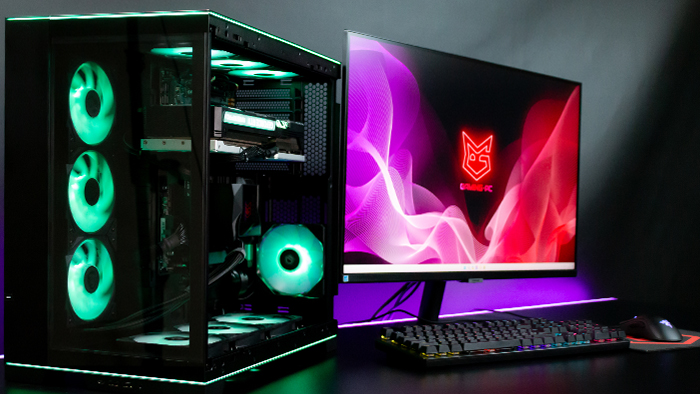
Final settings and performance optimization
The installation of the operating system is complete, but in order for your computer to perform optimally especially for gaming, there are a few additional steps to follow.
Installing drivers: After Windows installation is complete, it is important to install the latest drivers for optimal performance of your system, especially if your computer is designed for gaming. Drivers can be downloaded from the official websites of your hardware manufacturers (motherboard, video card, etc.).
Optimize your system for gaming:
- Disabling unnecessary visual effects: Go to performance settings and disable effects that can slow down your system.
- Adjust power settings: Switch to the "Maximum Performance" scheme.
Conclusion
Now that you have successfully installed and customized Windows from scratch, your computer is ready for use. Following the above recommendations guarantees stable and fast operation of your device, which is especially important for maximizing performance in games. If you have any questions or encounter difficulties at any of the stages, do not hesitate to ask for help in specialized forums or service centers. Your safety and comfort of use is a priority.
Gaming PC gaming computers
Gaming PCs are built for maximum performance, delivering impressive high-resolution graphics and stable frame rates for a fully immersive gaming experience.
 Free
Free shipping

Processor: Intel Core Ultra 9 285K
Video card: GeForce RTX 5070 Ti, 16GB
RAM: 32GB (16GBx2) DDR5 5600
Motherboard: ASRock Z890 PRO-A
SSD M2:SSD M.2 1TB / Kingston NV3
Free shipping
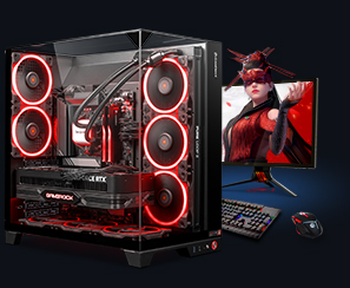
Processor: AMD Ryzen 7 7700
Video card: GeForce RTX 5070 Ti, 16GB
RAM: 32GB (16GBx2) DDR5 5600
Motherboard: Gigabyte B650M Gaming Plus WiFi
SSD M2:SSD M.2 1TB / Kingston NV3
Free shipping

Processor: AMD Ryzen 7 7800X3D
Video card: GeForce RTX 5080, 16GB
RAM: 32GB (16GBx2) DDR5 5600
Motherboard: Gigabyte B650M Gaming Plus WiFi
SSD M2:SSD M.2 1TB / Kingston NV3
Free shipping

Processor: Intel Core i5-12400F
Video card: GeForce RTX 3050, 6GB
RAM: 16GB (8GBx2) DDR4 3200 MHz
Motherboard: Asus Prime B760M-A D4-CSM
SSD M2:SSD M.2 500GB / Kingston NV3
Free shipping
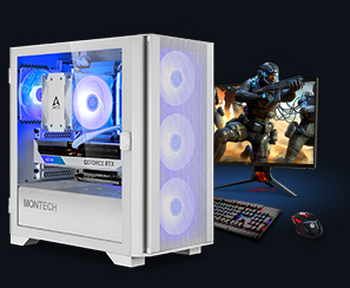
Processor: Intel Core i5-12400F
Video card: GeForce RTX 3050, 6GB
RAM: 32GB (16GBx2) DDR4 3200 MHz
Motherboard: Asus Prime B760M-A D4-CSM
SSD M2:SSD M.2 1TB / Kingston NV3
Free shipping

Processor: Intel Core i3-13100F
Video card: GeForce RTX 3050, 6GB
RAM: 16GB (8GBx2) DDR4 3200 MHz
Motherboard: Gigabyte H610M H V2 DDR4
SSD M2:SSD M.2 500GB / Kingston NV3
Free shipping

Processor: Intel Core i3-13100F
Video card: GeForce RTX 3050, 6GB
RAM: 16GB (8GBx2) DDR4 3200 MHz
Motherboard: Gigabyte H610M H V2 DDR4
SSD M2:SSD M.2 1TB / Kingston NV3
Free shipping

Processor: Intel Core i5 13600KF
Video card: GeForce RTX 5080, 16GB
RAM: 32GB (16GBx2) DDR5 5600
Motherboard: Asus TUF Gaming B760M-Plus II
SSD M2:SSD M.2 1TB / Kingston NV3
Free shipping

Processor: Intel Core i5 14600KF
Video card: GeForce RTX 5080, 16GB
RAM: 32GB (16GBx2) DDR5 5600
Motherboard: Asus TUF Gaming B760M-Plus II
SSD M2:SSD M.2 1TB / Kingston NV3
Free shipping

Processor: Intel Core i7-14700KF
Video card: GeForce RTX 5080, 16GB
RAM: 32GB (16GBx2) DDR5 5600
Motherboard: Gigabyte Z790 Eagle AX
SSD M2:SSD M.2 1TB / Kingston NV3