






How to adjust the monitor refresh rate
28/02/2025

How to adjust the monitor refresh rate
The refresh rate of the monitor determines how many times per second the image on the screen is refreshed. A high refresh rate, such as 120 Hz or 144 Hz, provides smoother motion and a better gaming experience. In this article, we'll look at how to change this setting in Windows 11 and the NVIDIA Control Panel.
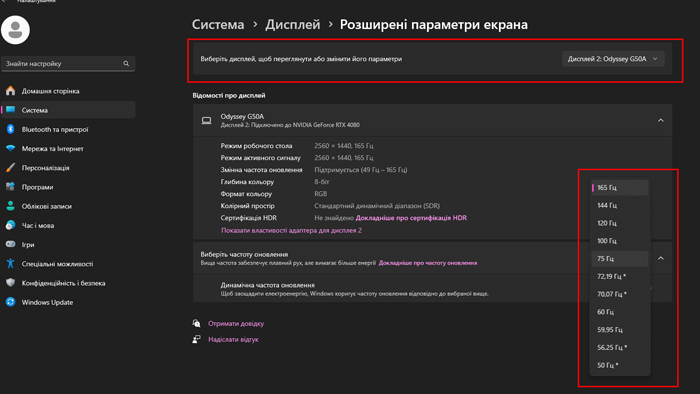
Changing the refresh rate in Windows 11
1. Open the display settings:
Press Win + I to open Settings.
Go to System → Display.
2. Select the correct display:
Go to "Advanced Display Settings".
If you have multiple monitors, select the correct one under "Display".
3. Adjust the refresh rate:
Scroll down to "Advanced Display Settings."
Under "Refresh Rate", select the desired value from the list and save your changes.
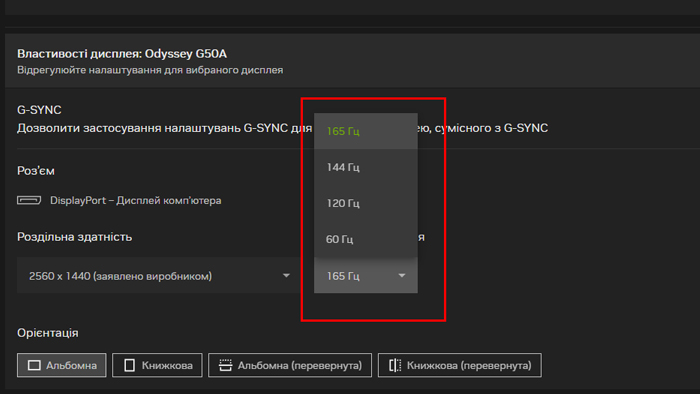
Changing the refresh rate in the NVIDIA Control Panel
1.Open the NVIDIA Control Panel:
Click PCM on the desktop → "NVIDIA Control Panel".
2.Navigate to Display Settings:
Open "Change Resolution" under "Display".
3.Select the desired monitor.
4.Adjust the refresh rate:
In the "Refresh rate" field, select the available frequency.
5.Save the settings and confirm the changes.
Computer with high frame rate
If the selected frequency is not applied, make sure you are using the correct cable (DisplayPort or HDMI) and your monitor supports the correct value. After changing the settings, it is recommended that you restart your computer to ensure that the settings are applied correctly.
To take full advantage of a monitor with a high refresh rate, you need a powerful computer that can deliver consistent high frame rates for modern games and other resource-intensive tasks. If you are looking for a productive system for comfortable use of such a monitor, pay attention to a wide range of ready-made solutions in GamingPC store.
Gaming PC gaming computers
Gaming Pc gaming computers are equipped with reliable and quality components to ensure optimal performance and productivity in all tasks.
 Free
Free shipping

Processor: Intel Core Ultra 9 285K
Video card: GeForce RTX 5080, 16GB
RAM: 64GB (32GBx2) DDR5 6000
Motherboard: ASRock Z890 PRO-A
SSD M2:SSD M.2 2TB / Kioxia Exceria Plus
Free shipping
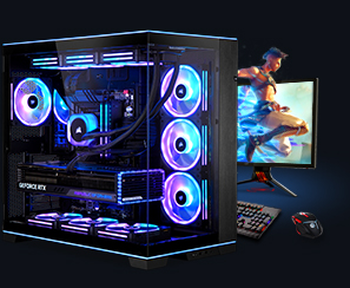
Processor: Intel Core Ultra 9 285K
Video card: GeForce RTX 5080, 16GB
RAM: 64GB (32GBx2) DDR5 6000
Motherboard: Gigabyte Z890 Aorus Elite X ICE
SSD M2:SSD M.2 2TB / Samsung 990 PRO
Free shipping

Processor: Intel Core Ultra 9 285K
Video card: GeForce RTX 5080, 16GB
RAM: 64GB (32GBx2) DDR5 6000 MHz
Motherboard: Gigabyte Z890 Aorus Elite X ICE
SSD M2:SSD M.2 2TB / Samsung 990 PRO
Free shipping

Processor: Intel Core Ultra 9 285K
Video card: GeForce RTX 5070 Ti, 16GB
RAM: 32GB (16GBx2) DDR5 5600
Motherboard: ASRock Z890 PRO-A
SSD M2:SSD M.2 1TB / M.2 MSI M470 Pro
Free shipping

Processor: AMD Ryzen 7 9800X3D
Video card: GeForce RTX 5090, 32GB
RAM: 64GB (32GBx2) DDR5 6000
Motherboard: Asus ROG Strix B650E-F WIFI
SSD M2:SSD M.2 2TB / Samsung 990 PRO
Free shipping
Processor: Intel Core Ultra 9 285K
Video card: GeForce RTX 5090, 32GB
RAM: 64GB (32GBx2) DDR5 6000
Motherboard: Gigabyte Z890 Aorus Elite X ICE
SSD M2:SSD M.2 2TB / Samsung 990 PRO
Free shipping

Processor: AMD Ryzen 7 7800X3D
Video card: GeForce RTX 5090, 32GB
RAM: 64GB (32GBx2) DDR5 6000
Motherboard: Asus ROG Strix B650-A WIFI
SSD M2:SSD M.2 2TB / Samsung 990 PRO
Free shipping
Processor: Intel Core i9-14900KF
Video card: GeForce RTX 5090, 32GB
RAM: 64GB (32GBx2) DDR5 6000
Motherboard: Asus ROG Strix Z790-F WiFi II
SSD M2:SSD M.2 2TB / Samsung 990 PRO
Free shipping
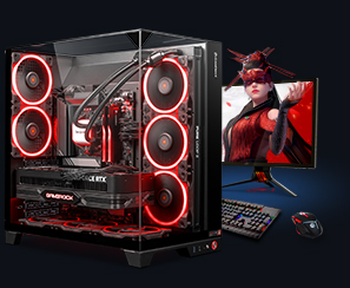
Processor: AMD Ryzen 7 7700
Video card: GeForce RTX 5070 Ti, 16GB
RAM: 32GB (16GBx2) DDR5 5600
Motherboard: Gigabyte B650M Gaming Plus WiFi
SSD M2:SSD M.2 1TB / M.2 MSI M470 Pro
Free shipping
Processor: AMD Ryzen 7 7800X3D
Video card: GeForce RTX 5080, 16GB
RAM: 32GB (16GBx2) DDR5 5600
Motherboard: Gigabyte B650M Gaming Plus WiFi
SSD M2:SSD M.2 1TB / M.2 MSI M470 Pro
Recommended reading

How to choose a good gaming PC?
Choosing a good gaming PC is a task that requires a comprehensive approach and consideration of several factors, as modern games are becoming...
More details
How to build a PC with RTX 5090
With the introduction of NVIDIA 's flagship GeForce RTX 5090 graphics card to the market, enthusiasts have a new opportunity to create a computer...
More details
How many cores should a gaming computer have?
When choosing a new PC, the question often arises: "how many cores should a gaming computer have?". This question can cause some debate...
More details