






How to Check CPU Temperature: A Complete Guide for Gamers
16/06/2026
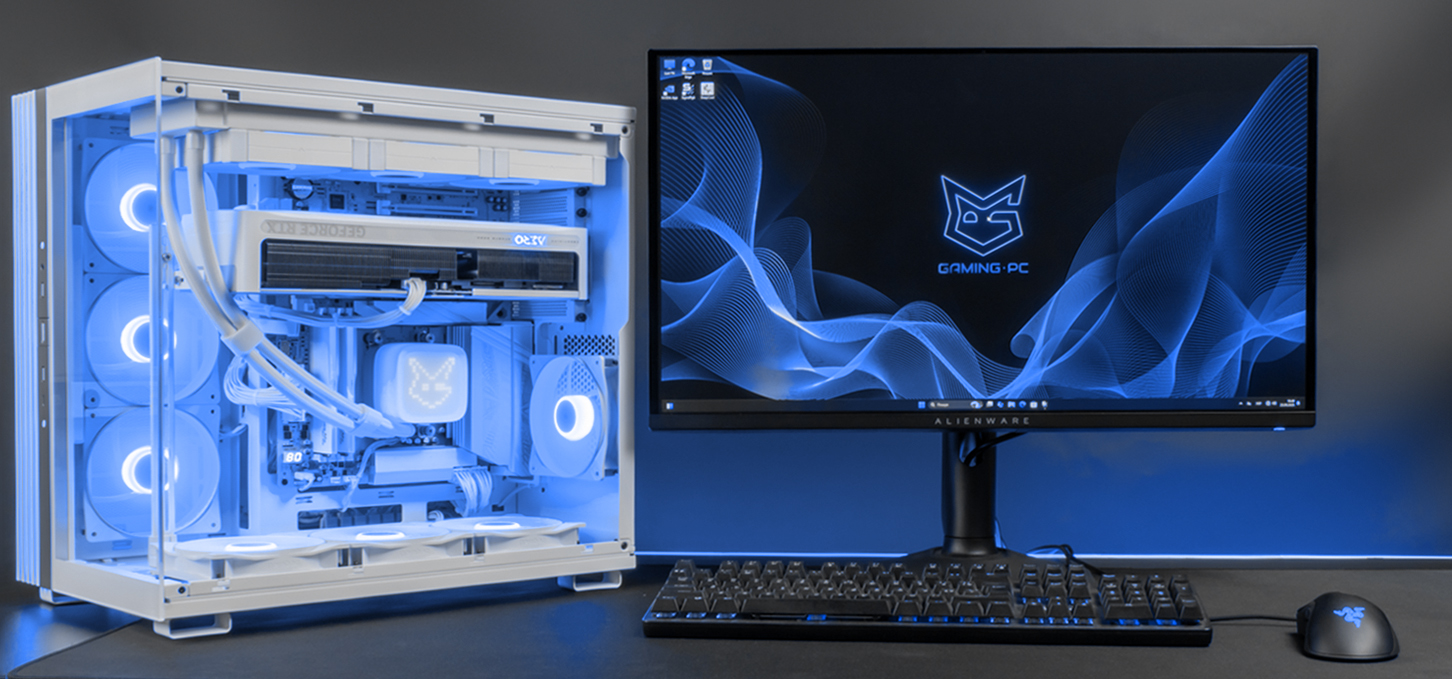
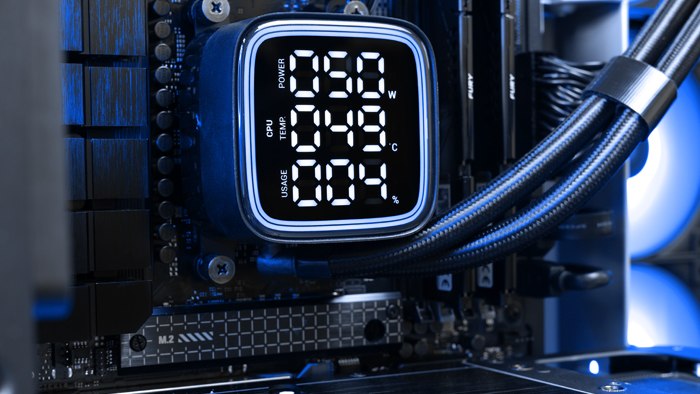
Every gamer and high-performance PC owner eventually wonders if their hardware is running fine under heavy loads. The central processing unit is the heart of any computer system, and its overheating can lead to performance drops, in-game stutters, or even component failure. Over my 7 years of experience working with such projects, I have noticed that more than half of service center visits are caused by neglected cooling issues. In this article, we will look closely at how to monitor your chip thermal state and what tools you need for this.
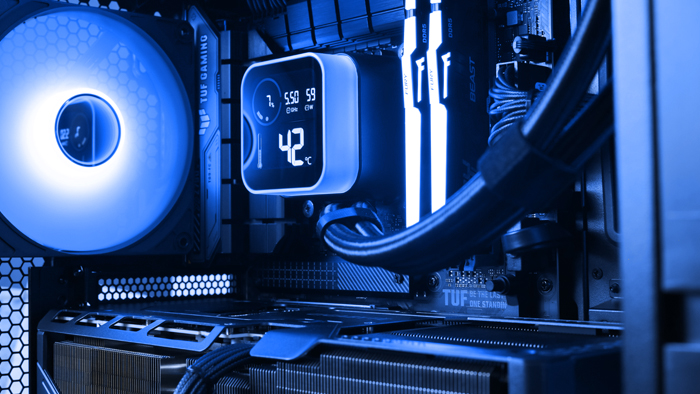
What CPU Temperature is Considered Safe
First, it is important to understand which metrics are operational and which require immediate action. A normal CPU temperature at idle or during basic tasks like web surfing or working with documents usually ranges from 35 to 50 degrees Celsius. When you launch a modern game or render a video, the load increases.
Under high activity, temperatures up to 75–85 degrees are considered optimal. If the metric rises above 90 degrees, you should pay attention to it. When it reaches 95–100 degrees, thermal throttling activates, which is a forced drop in clock speed to protect the silicon. According to official specifications from major manufacturers like Intel, running at maximum temperatures for long periods significantly shortens the lifespan of semiconductors.
Methods to Check CPU Thermal Metrics
There are several proven methods to evaluate your system state. The easiest and most reliable way is using specialized software that reads data from the built-in thermal sensors of the motherboard and the crystal itself. My experience shows that built-in operating system tools do not always give the full picture, so it is better to rely on proven utilities.
If you want to quickly check CPU temperature without installing third-party programs, you can restart your computer and enter BIOS/UEFI. To do this, press Del or F2 during system startup. In the main menu or under the Hardware Monitor section, you will see the current metrics. However, this method has a huge downside: you will only see the chip data at idle, not under a real gaming load.
Best Software for Real-Time Monitoring
A high-quality CPU temperature monitoring program is ideal for continuous monitoring; it can run in the background or display an overlay directly on top of the game. Below is a table of popular utilities and their key features to help you choose the right option.
Monitoring software features:
HWMonitor: Extremely simple interface, displays current, minimum, and maximum values.
Core Temp: A lightweight utility that displays data for each core separately in the system tray.
OCCT: An excellent tool for testing and monitoring, clearly displaying graphs of temperatures and voltages under load.
AIDA64: A powerful diagnostic suite that includes stress tests to check stability.
Let’s take a look at how to check your CPU temperature using Core Temp. This is a tiny application that doesn’t put a strain on your system. Once launched, you’ll see readings for each core. I recommend setting up critical alerts: the program will warn you if the temperature exceeds a specified limit.
For those who want to perform a deep analysis, HWMonitor from CPUID is an excellent choice. To properly check the CPU temperature in this utility, launch it before starting a demanding game. Minimize the window, play for about 20–30 minutes, and then check the Max column. This will show the peak load on the cooling system.
Step-by-Step Algorithm for Heat Control
If you notice that your computer has started making more noise than usual or your frame rate has dropped, follow these steps:
Download and install one of the utilities listed above.
Record the metrics at idle state.
Run a demanding application or benchmark for 15 minutes.
Compare the received data with safe limits.
Many users ask how to view CPU temperature during a game without minimizing the window. For this, it is best to use the built-in charts or logging in OCCT. This will allow you to precisely record how the degrees change in complex scenes with many special effects.
According to statistics from the Steam platform, more than 44% of consumers face performance drops due to simple dust accumulation inside the PC case. Monitoring the thermal mode helps identify this problem at an early stage.
Why It Is Beneficial to Buy Hardware at GamingPC
If diagnostics show constant overheating and replacing the thermal paste did not help, it might be time to upgrade your cooling system or the entire computer. We at the GamingPC online store offer ready-made balanced solutions and components.
Our key advantages:
Our experience shows that professional component selection, neat cable routing, correct placement and configuration of fans not only reduce component temperatures by 10-15 degrees but also positively affect their lifespan.
We ship orders as quickly as possible after thorough assembly and testing across Ukraine because we value our clients' time and keep popular products in our own warehouse.
We provide an official warranty of up to 36 months on all computers of our assembly.
Free technical support for clients throughout the entire warranty period.
We build every computer as if it were for ourselves, thoroughly testing it under extreme loads before shipping. You can be sure that your new PC will not fail at the most crucial moment of the match.
Conclusion
Timely monitoring of computer thermal metrics allows you to avoid serious breakdowns and maintain high system performance. To check the chip status, it is best to use specialized software that records peak values under load. Regular cleaning of the system unit from dust and replacing the thermal paste once a year will help keep temperature metrics within safe limits.
If an upgrade or professional service is needed, you can always contact specialists who will select the optimal cooling for stable PC operation.
 Free
Free shipping

Processor: Intel Core Ultra 9 285K
Video card: GeForce RTX 5080, 16GB
RAM: 64GB (32GBx2) DDR5 6000
Motherboard: ASRock Z890 PRO-A
SSD M2:SSD M.2 2TB / Kioxia Exceria Plus
Free shipping

Processor: Intel Core Ultra 9 285K
Video card: GeForce RTX 5070 Ti, 16GB
RAM: 32GB (16GBx2) DDR5 5600
Motherboard: ASRock Z890 PRO-A
SSD M2:SSD M.2 1TB / M.2 MSI Spatium M470 Pro
Free shipping
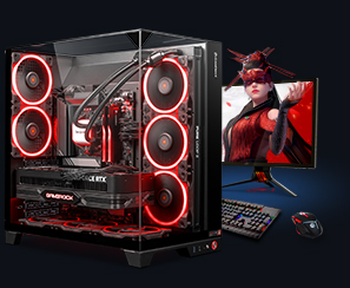
Processor: AMD Ryzen 7 7700
Video card: GeForce RTX 5070 Ti, 16GB
RAM: 32GB (16GBx2) DDR5 5600
Motherboard: Gigabyte B650M Gaming Plus WiFi
SSD M2:SSD M.2 1TB / M.2 MSI Spatium M470 Pro
Free shipping

Processor: AMD Ryzen 7 7800X3D
Video card: GeForce RTX 5080, 16GB
RAM: 32GB (16GBx2) DDR5 5600
Motherboard: Gigabyte B650M Gaming Plus WiFi
SSD M2:SSD M.2 1TB / M.2 MSI Spatium M470 Pro
Free shipping

Processor: Intel Core i5 13600KF
Video card: GeForce RTX 5080, 16GB
RAM: 32GB (16GBx2) DDR5 5600
Motherboard: Asus TUF Gaming B760M-Plus II
SSD M2:SSD M.2 1TB / M.2 MSI Spatium M470 Pro
Free shipping
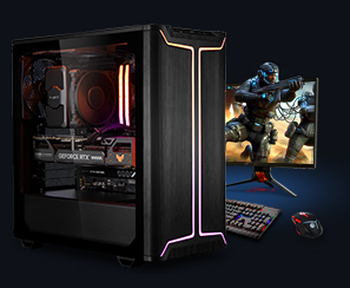
Processor: Intel Core i5 14600KF
Video card: GeForce RTX 5080, 16GB
RAM: 32GB (16GBx2) DDR5 5600
Motherboard: Asus TUF Gaming B760M-Plus II
SSD M2:SSD M.2 1TB / M.2 MSI Spatium M470 Pro
Free shipping

Processor: Intel Core i7-14700KF
Video card: GeForce RTX 5080, 16GB
RAM: 32GB (16GBx2) DDR5 5600
Motherboard: Gigabyte Z790 Eagle AX
SSD M2:SSD M.2 1TB / M.2 MSI Spatium M470 Pro
Free shipping

Processor: Intel Core i7-13700KF
Video card: GeForce RTX 5080, 16GB
RAM: 32GB (16GBx2) DDR5 5600
Motherboard: Gigabyte Z790 Eagle AX
SSD M2:SSD M.2 1TB / M.2 MSI Spatium M470 Pro
Free shipping

Processor: Intel Core i9-13900KF
Video card: GeForce RTX 5080, 16GB
RAM: 32GB (16GBx2) DDR5 5600
Motherboard: MSI Z790 Gaming Plus WiFi
SSD M2:SSD M.2 1TB / M.2 MSI Spatium M470 Pro
Free shipping
Processor: Intel Core i9-14900KF
Video card: GeForce RTX 5080, 16GB
RAM: 32GB (16GBx2) DDR5 5600
Motherboard: MSI Z790 Gaming Plus WiFi
SSD M2:SSD M.2 1TB / M.2 MSI Spatium M470 Pro
Recommended reading

Computers for mining
With the advent of cryptocurrency such as Bitcoin, mining - the process of verifying and adding transactions to the blockchain, it has become a...
More details
Grand Theft Auto VI: Release Date, Price, and Differences Between Editions
The Grand Theft Auto series has long been the gold standard among open-world games. Each new installment has set new standards for graphics, detail,...
More details
Choosing an Intel Core Ultra processor
The new Intel Core Ultra processors are the next step in the evolution of Intel's Core series. they offer high performance and energy efficiency...
More details